Add sources
Paste a profile, playlist or individual video link that you are allowed to use.
Choose your sources, set the output rules, follow the queue and check the saved files.
 ↗ Open full screen
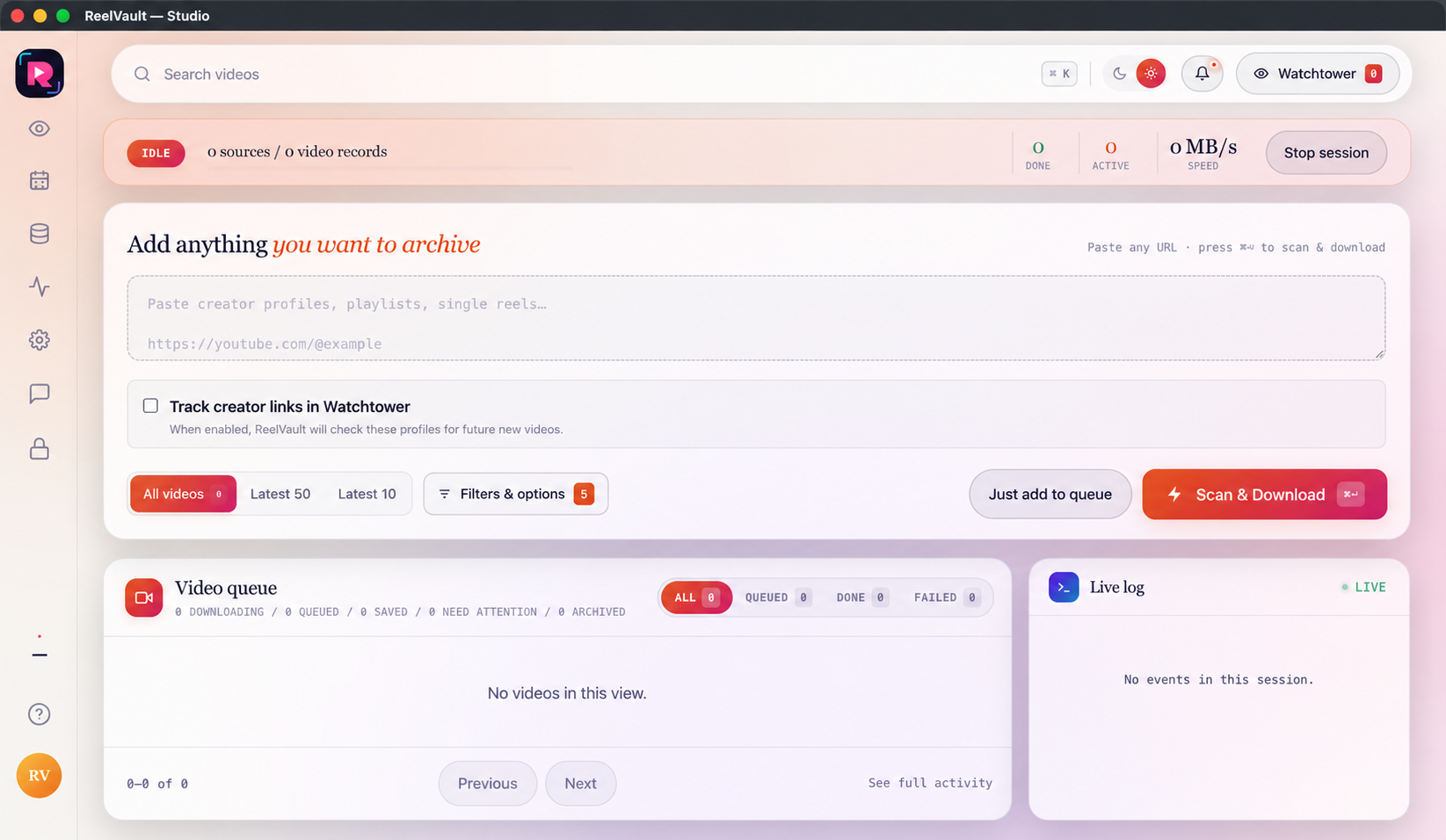
Paste a profile, playlist or video link you are allowed to use. Pick All, Latest 50, Latest 10 or your own filters. Then queue the job or start Scan & Download.
The full job stays in one simple flow. You choose the source and rules; ReelVault handles the repeat work and keeps the result visible.
Paste a profile, playlist or individual video link that you are allowed to use.
Collect all items, the latest 50, the latest 10 or a custom filtered range.
Choose MP4 quality or MP3, then set thumbnails, subtitles, metadata and duplicate protection.
Save the job for later or use Scan & Download, then follow progress and retries.
Inspect Activity, find files in Data Center and sync repeat creators in Watchtower.
ReelVault finishes the collection job. Forge opens those local clips, applies one main design and exports the checked batch.
Check your computer, choose a plan and follow the first lesson.