The menus after the queue are part of the job.
Use these screens to confirm what was saved, understand a problem and make the next run easier. Change only the setting you understand, then save and test with a small job.
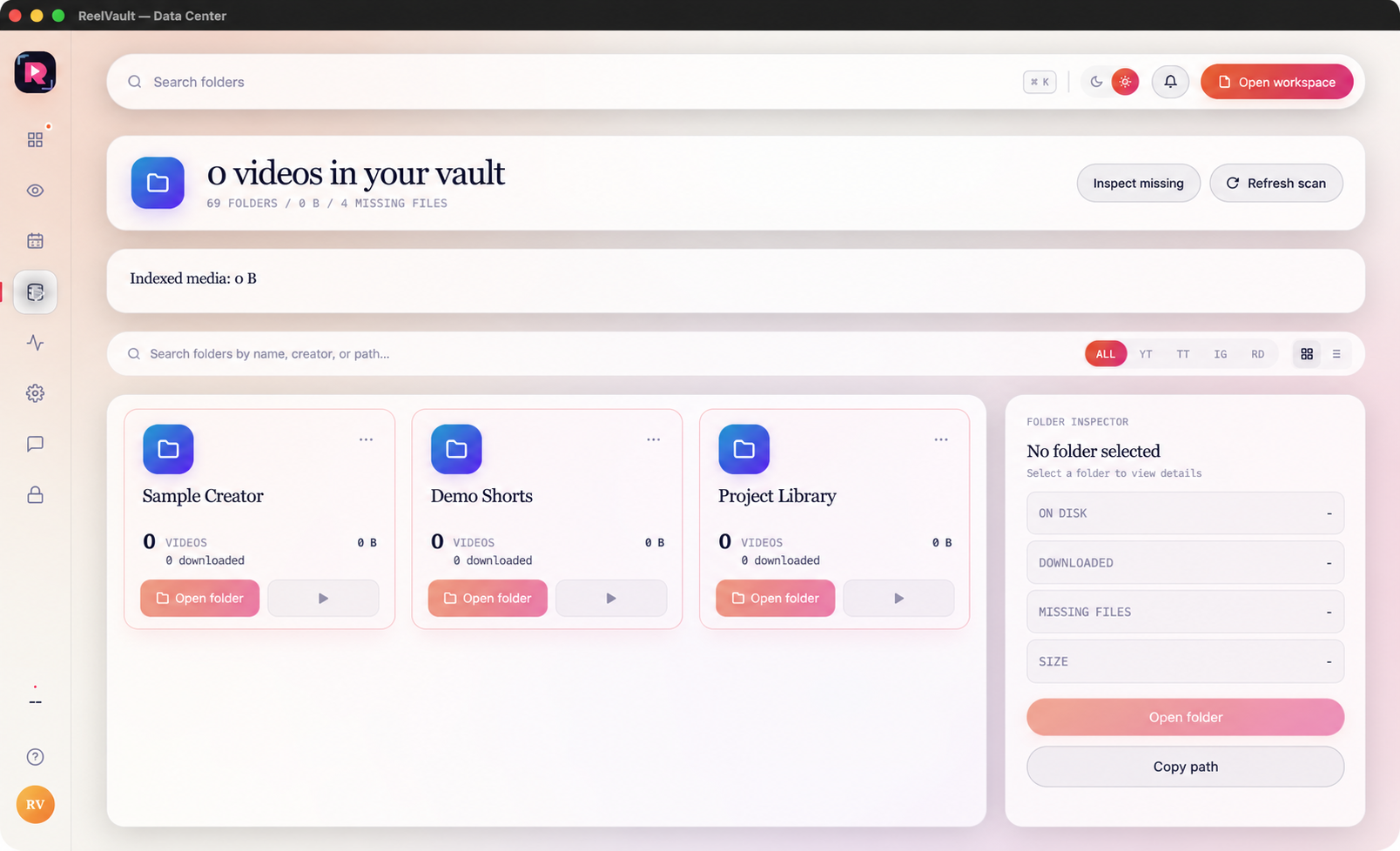
Data Center: find and check saved media
Search by folder, creator or path. Use the platform filters, switch between grid and list view, and open a record to see its saved, downloaded, missing and size states. Inspect missing finds broken records; Reveal or Open folder takes you to the local file.
Activity: understand what happened
Activity keeps completed work, active jobs and errors in one history. Use the event filters to narrow Downloads, Scans, Watchtower, Errors, License or Settings activity. Open an error for the reason, retry only the failed item and export a log when support needs it.
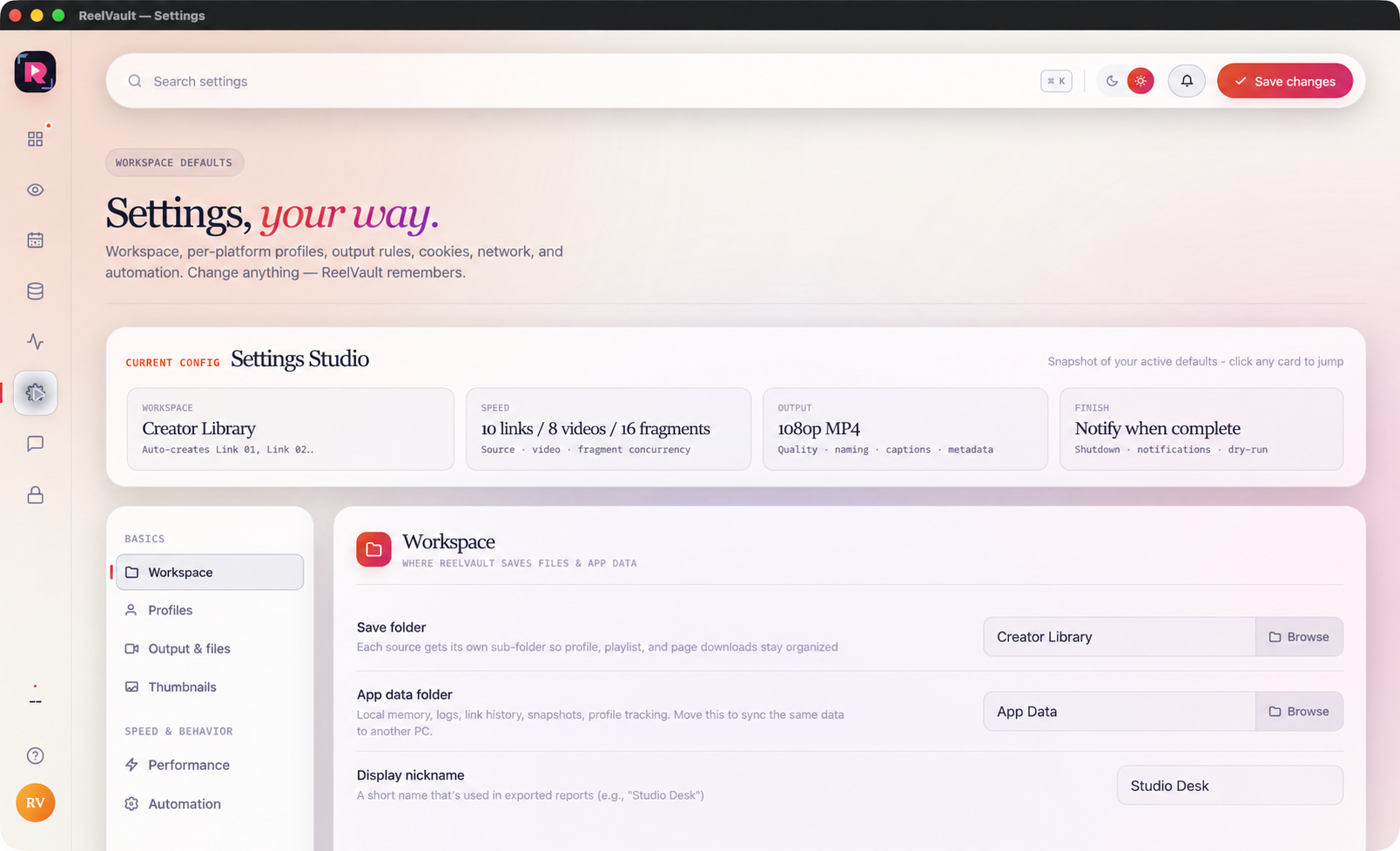
Settings: choose defaults for the next run
Workspace chooses where app data and media are saved. Profiles keeps platform-specific choices. Output & files controls names, captions, subtitles, metadata and folders. Thumbnails changes saved preview images. Performance controls how many jobs run together. Automation holds notifications, idle checks and dry-run choices.
Cookies, network and advanced settings
Cookies & login stores access choices for supported platforms. Proxy & API holds optional network routing and translation access. Advanced keeps separate reset controls for queues, tracking, activity, duplicate history, preferences and workspace files. Read the label carefully before any reset.
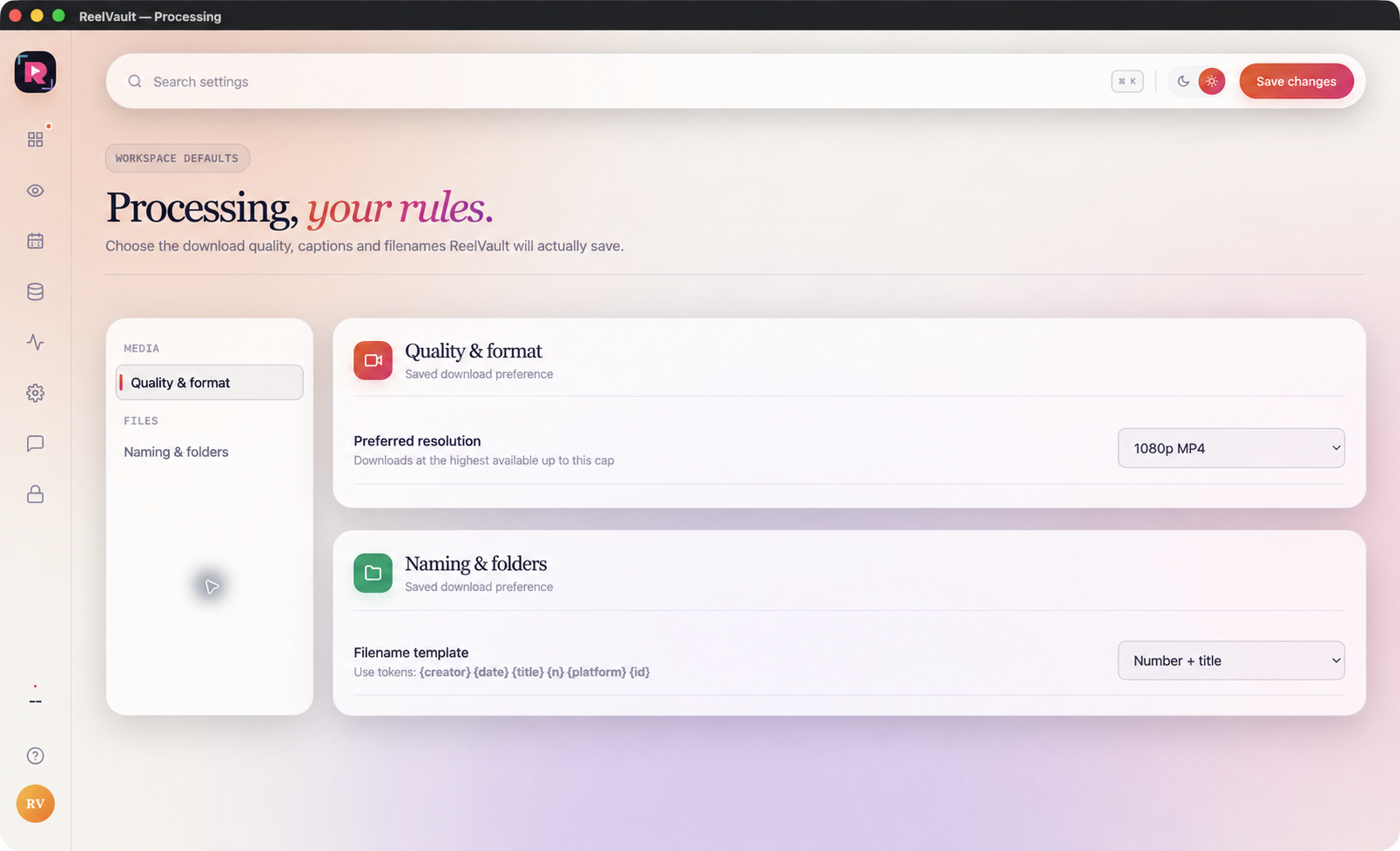
Processing: set quality, names and folders
Quality & format sets the preferred resolution and file type for saved media. Naming & folders controls the filename pattern and subfolder structure. Choose a simple naming rule your team can read, save the changes and test it with one item before a large queue.
Support, License, Profile and Help
Support is the place for guidance and problem reporting. License shows device access and activation status. The profile button opens account details, plans and payment help. Help explains common actions while you work. Keep these screens separate from download jobs, and never share a license key or private log on a public page.