Keep a repeat source list easy to reuse.
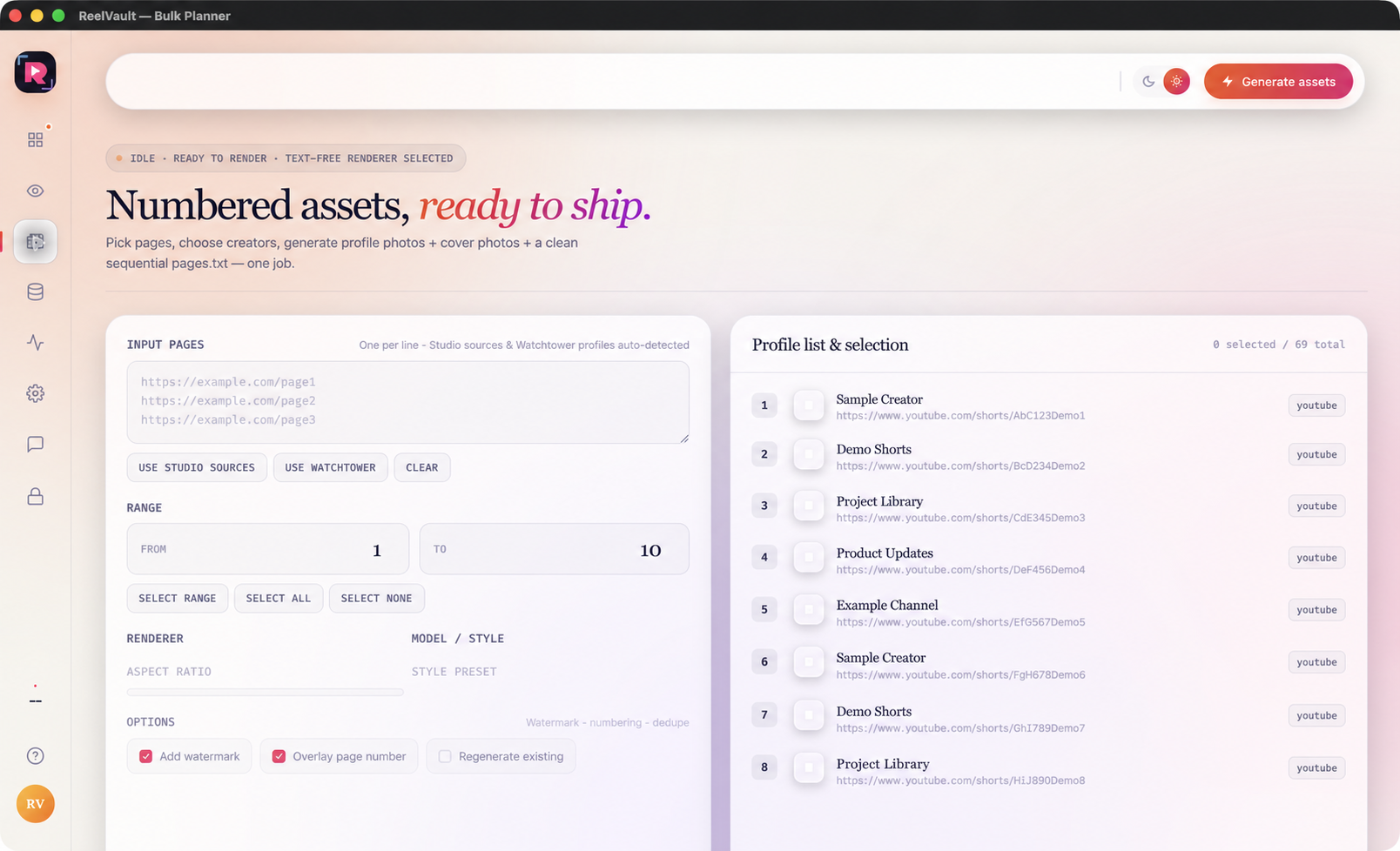
Use Bulk Planner when you need organised profile and cover assets from several pages. The current 1.1.0 flow uses local generation and backend defaults, so the main decisions are the source list and numeric range.
Choose where the sources come from
Paste pages one per line, reuse sources from Studio or select tracked items from Watchtower. Keep the source set intentional; the planner is strongest when the input is understandable.
Set the range you actually want
Use Select all, Select none or enter a numeric From–To range. Check the selected count before you start.
Generate with the current defaults
Start Generate assets. ReelVault uses its current local renderer and backend defaults to prepare profile and cover assets for the selected pages.
Open and check the output folder
Use the folder action when the run finishes. Confirm the generated assets and the organised pages.txt source list before moving them into your wider workflow.