Start by choosing what will change.
Master design changes every video. This item changes the open video. Selected and Tagged change only a chosen group. Make this choice before using any Editor control.
Choose the change group first
Use Master design for the normal look across the batch. Use This item, Selected or Tagged only when those videos need a different treatment.
Connect the main clip.
Choose or replace the source used by the current change group.
Prepare short-form layout.
Set the video up for a vertical or short-form design.
Choose the visible area.
Place and size the clip inside the final canvas.
Keep the subject in view.
Use smart framing when the source and output shapes are different.
Reuse a saved look.
Apply repeatable design choices before making smaller changes.
Add titles and labels.
Create on-screen words outside the automatic caption track.
Style spoken words.
Choose the look, size, position, motion and subtitle delivery.
Adjust the image look.
Apply colour and visual treatment to the chosen videos.
Add design pieces.
Place supported visual elements inside the composition.
Clean and balance sound.
Adjust voice and background sound while you can still preview the edit.
Open assisted tools.
Use the available assisted creative options and check their result.
Control what sits in front.
Select, order and manage items inside the design.
Choose a caption look you can read quickly
Forge includes TikTok Bold, YouTube Yellow, Soft Chip, Newsroom and Neon looks. Start with one, then adjust the size and position while watching the preview.
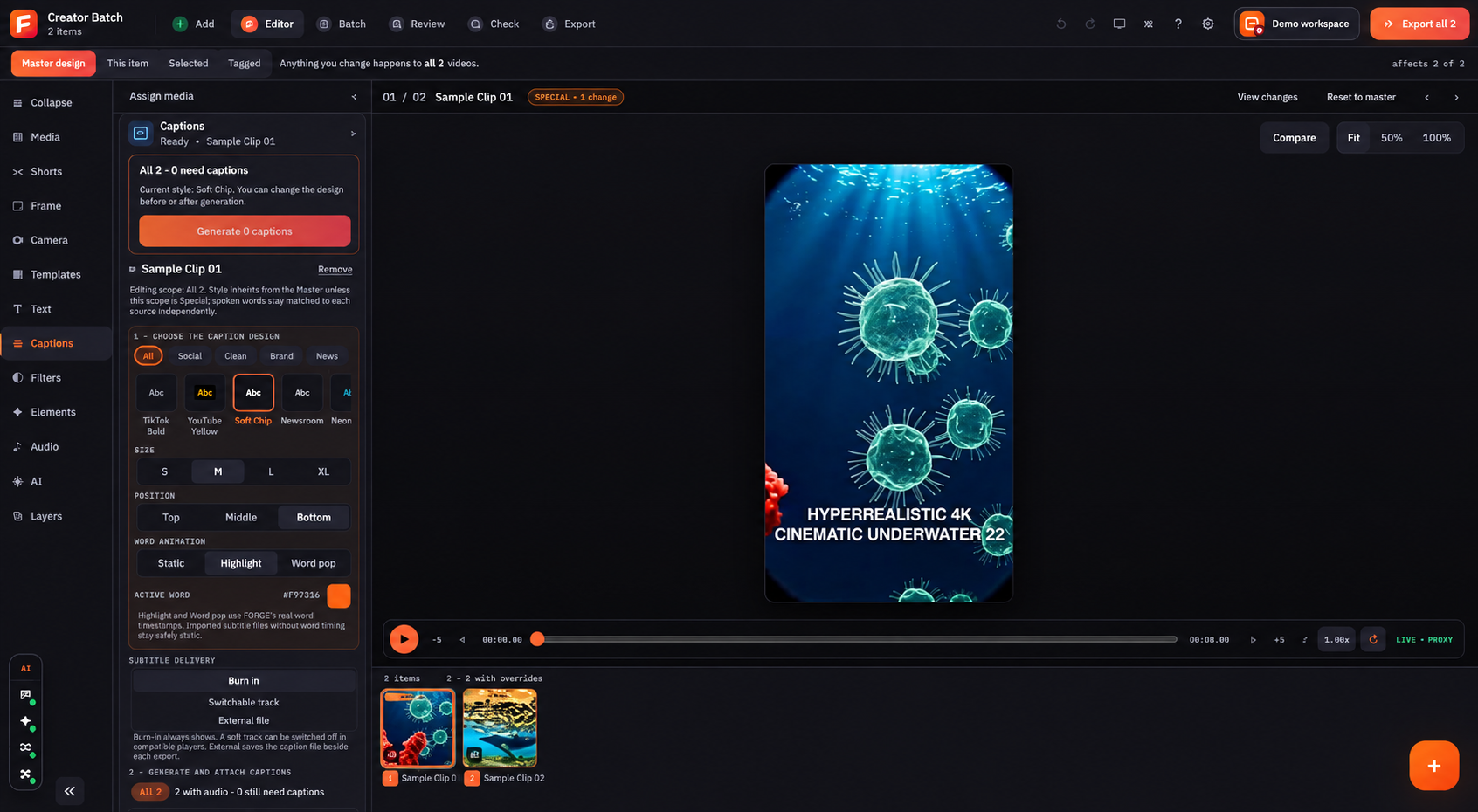
Choose calm or active caption motion
Use Static, Highlight or Word pop, then choose the active-word colour. Preview the full sentence so the motion helps the viewer instead of hiding the words.
Choose how subtitles leave Forge
Burn in makes the captions part of the video image. Switchable track keeps them on or off inside the file. External file saves subtitles separately for another platform or accessibility workflow.